Ask AI with the files that matter, then inspect the diff.
Reference local source files, get a proposed change, and keep the final write behind an explicit review step.
Chrome extension for web AI work
ChatFile brings local files, pages, and AI answers into one browser workspace. Send only the right context to ChatGPT, Claude, Gemini, and more, then capture useful output and review every file write before it touches disk.
Built for Chrome and Chromium browsers with side panels and local folder access.
Sharper everyday workflows
ChatFile is for people who already use browser AI, but keep losing time moving project context, research, and AI output by hand.
Reference local source files, get a proposed change, and keep the final write behind an explicit review step.
Capture useful web AI responses or current pages as Markdown and CSV drafts that can become reusable context.
Save durable workflow outputs into the local workspace so later prompts can start with context instead of archaeology.
The missing layer in web AI
ChatFile turns the messy loop of copying snippets, chasing previous answers, and applying edits manually into one reviewable workflow.
Manually open files, guess which snippets matter, paste huge blocks into a chat, then move useful answers back by hand.
Add local files as context, capture web answers into drafts, and approve write proposals before local files update.
Why it feels different
Instead of dumping giant prompts into a chat, ChatFile lets you choose context, keep useful answers, and approve local file changes with clear boundaries.
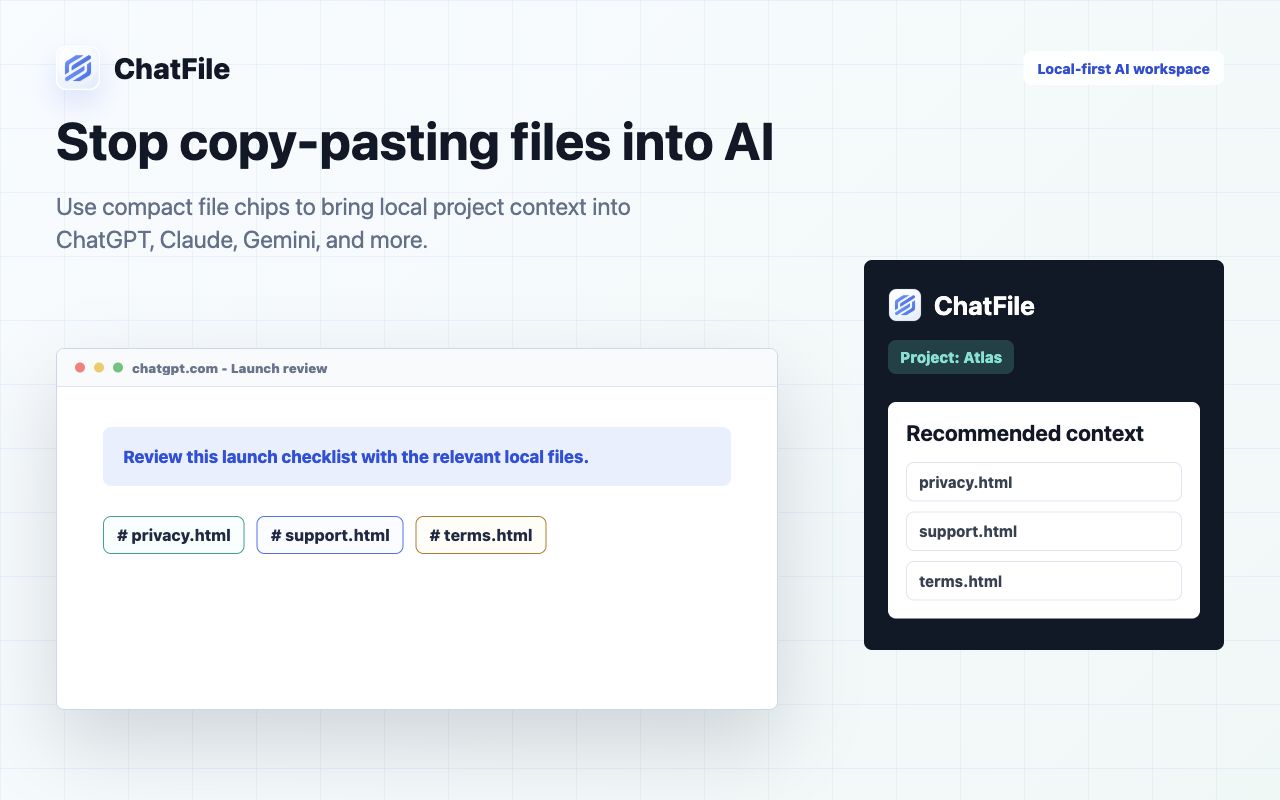
Add a folder, pick the files that matter, and send compact file chips to the current AI chat.
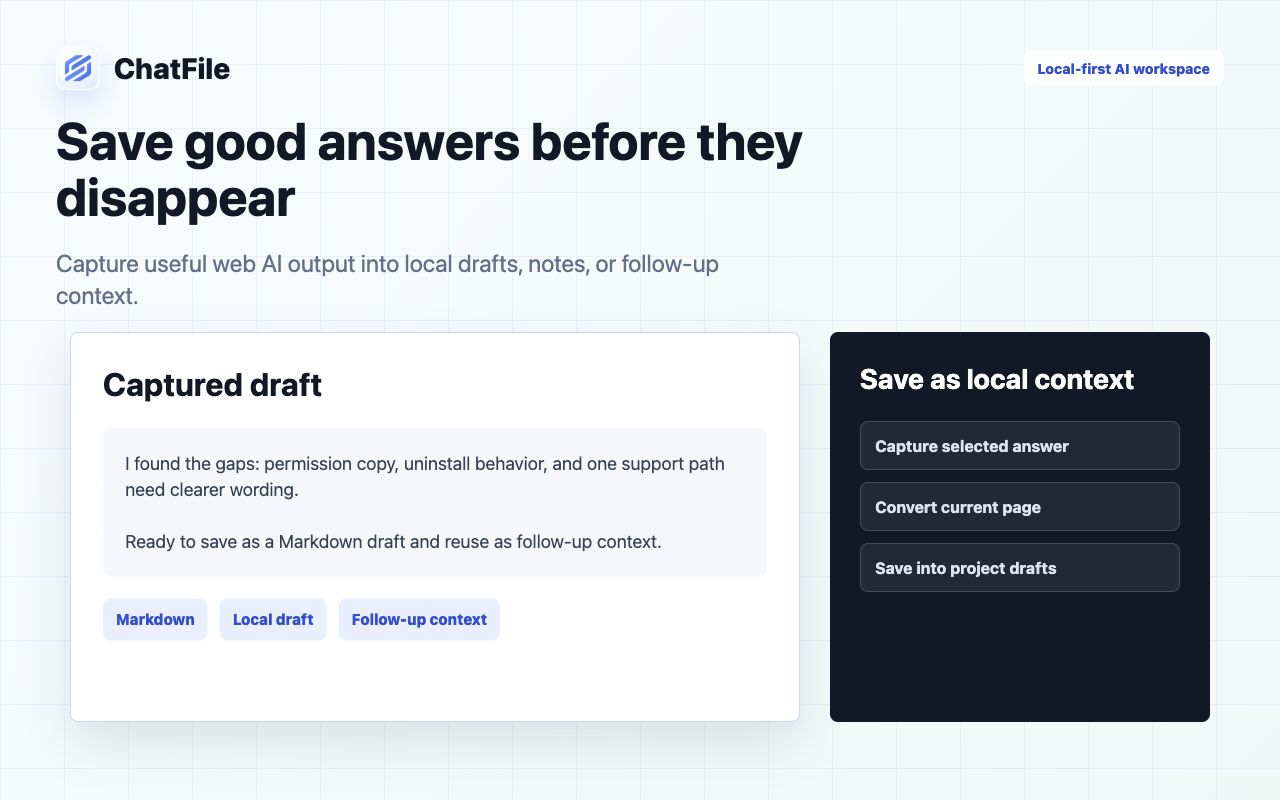
Save selected answers, current pages, Markdown notes, or CSV drafts before they disappear inside a long conversation.
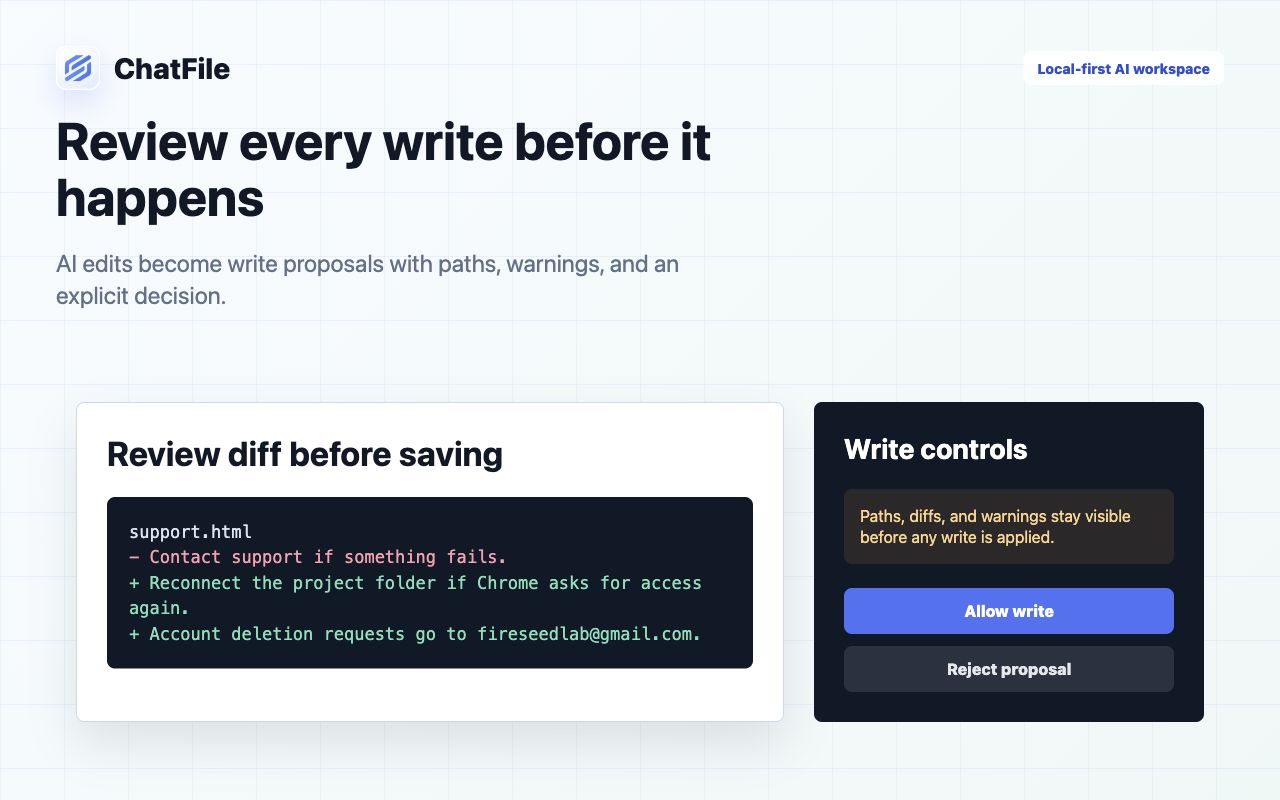
AI-generated edits become write proposals with paths, warnings, and explicit allow or reject controls.
Authorize a local folder through Chrome.
Search files, pages, and reusable snippets.
Insert clean context into the current chat.
Capture answers and approve writes.
Clear plan boundaries
Free is enough to try the core loop. Pro is for larger context, multi-source work, history, schedules, and saving outputs back into the local workspace.
ChatFile Pro does not include third-party AI memberships, model subscriptions, or API credits. Use supported web AI sessions or your configured providers.
Chrome Web Store story
Less paste, better context, durable answers, reviewed writes, and clear local data boundaries.
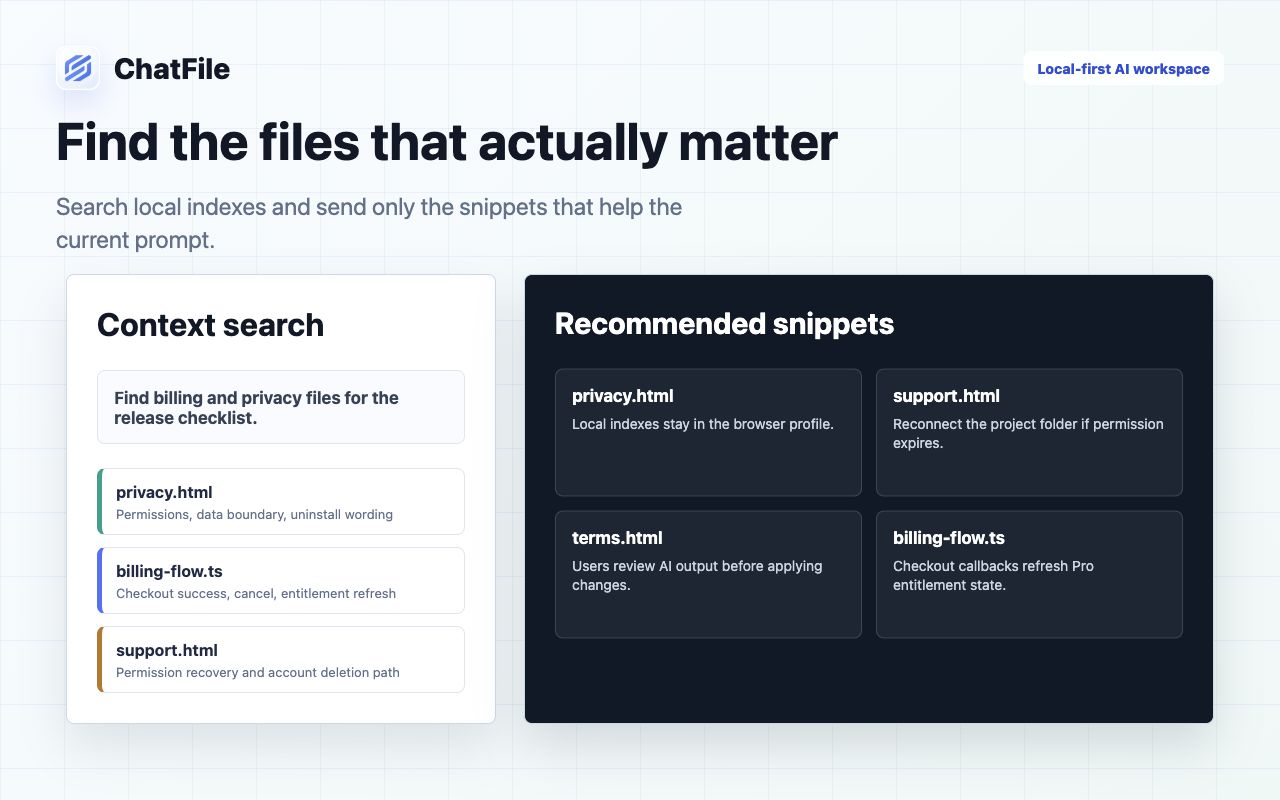
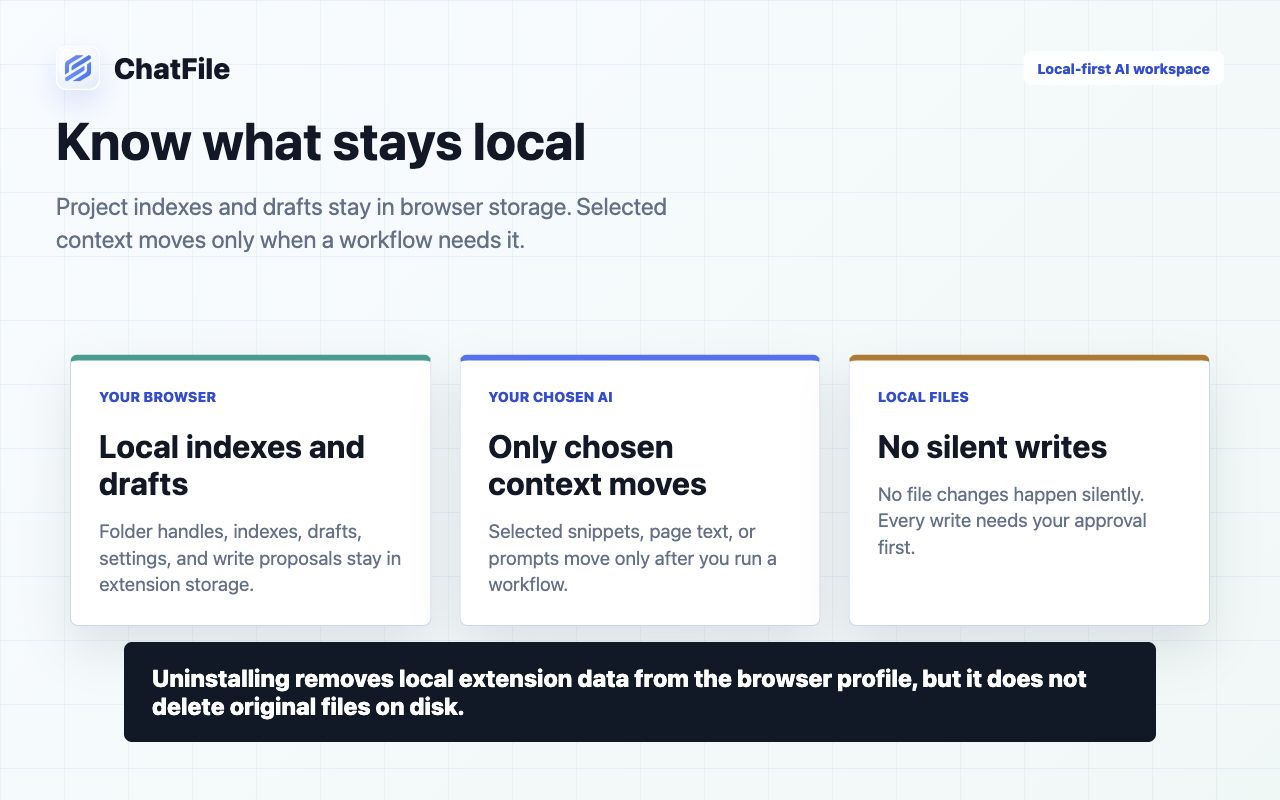
Local-first by design
Project indexes, folder handles, drafts, settings, and write proposals live in browser-local extension storage. Selected snippets or page text are sent only when a workflow needs them.
Folder handles, file indexes, settings, and write proposals stay in extension storage.
File snippets, page text, or selected answers are sent only after you run that action.
Every local file change is prepared as a proposal and needs approval before saving.
Trust before install
The extension asks for browser capabilities because it lives next to web AI pages and local files. These are the practical boundaries.
No. Local indexes, folder handles, drafts, settings, and write proposals stay in browser-local extension storage. Selected snippets move only when you run a workflow that needs them.
When you send chosen file context to a web AI page, call a configured API provider, use a remote embedding provider, sign in, or complete payment. The target service handles that content under its own terms.
ChatFile uses them to detect supported AI inputs, insert chosen context, capture selected answers, read user-selected tabs, and keep the side panel coordinated with the current page.
No. AI output becomes an editable draft or write proposal first. A local file is written only after you review the path, warnings, and diff, then approve the save.
Use a throwaway folder with fictional files only. Do not record private documents, real customer data, personal paths, or identifiable account details.
Chrome removes the extension's local storage for that browser profile. Your original local files are not deleted.
Ready for Chrome
Start with one local folder, send the right context, capture the useful answer, and review file changes before they happen.